
If you have forgotten the password of your Windows 7/8/10 computer then you must be thinking the only way to reset or remove the password from your computer is to format the hard drive and re-install the operating system, right? Well, your point is indeed true but beware because formatting your primary disk will certainly cause severe data loss that cannot be recovered. All the files, folders, software, pictures, documents, etc. will be erased from your PC forever.
So, you may be anticipating, what’s the way around to reset your Windows computer password without losing any data at all? Well, stop tearing your hair as we show the correct way to reset your computer password without losing a single item from your PC again. So, let’s dig in and let started with the solutions.
Solution #1: Reset Windows login password with Command prompt
Command prompt has always been helpful when it comes to manipulate with Windows sub systems. It also helps to reset Windows password even if you forget it. But it requires special command lines to execute the resetting process that can be accomplished by following these steps:
Step 1. Insert the Windows operating system disk on your computer and reboot it.
Step 2. Wait for the login screen to appear and tap the shift key 5 times in a row to activate the command prompt screen.
Step 3. Type the following command line to reset your computer password
NET USER ADMINISTRATOR “123456”
Replace 123456 with any password of your choice and change ADMINISTRATOR to your computer username.
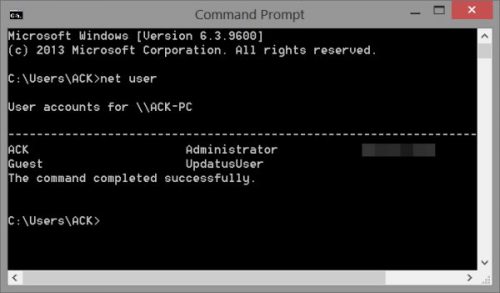
Step 4. Press enter to execute the command and
your password will be successfully saved.
Restart your PC and use the new password to access your PC.
Cons
- Not a 100% working method in some cases.
- Execution of wrong command can cause data corruption.
Solution #2: Reset password from other Administrator account
If you have multiple Administrator accounts registered in your computer then changing the password of your main user profile account won’t be too hard. Here’s how to do that –
Step 1. Turn on your PC and login using any other administrator account.
Step 2. Open the Run app from Start or press Windows + R key to launch it and type “cmpmgmt.msc” and hit the enter button.
Step 3. A new Computer Management window will open. Look at the left sidebar and choose “Local Users and Groups” followed by “Groups”.
Step 4. From the right side panel, choose the username that you wish to change password for and right-click on it. Select “Set Password” and enter a new password twice then save it.
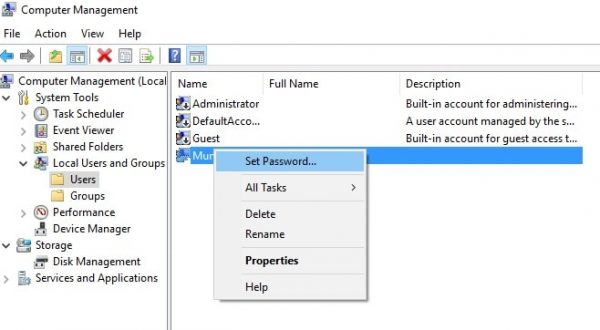
Reboot your PC and you should be able to enter the new password to enter into your PC again.
Cons
- Other guest accounts must have administrator privileges.
- Other accounts must be setup before forgetting the password.

 DevScript Saga
Leave a comment